Turn your PDF into an explainer video
Upload your lecture PDF, slides or script, pick a topic, and StudyPDF makes a narrated, animated video that teaches it: it opens with the question and your concepts, then explains one concept after another with diagrams, plots, worked examples and formulas.
- Built from your pages, with page references
- No avatar, no stock footage
- In ten languages
On this page
Why a PDF to video converter for studying works differently
Most PDF to video tools read your document aloud over slides, an avatar or stock clips. That is fine for a sales deck. For an exam it is the wrong shape: a lecture PDF is a pile of concepts, and a video that walks through it page by page teaches the layout of the slides, not the ideas.
StudyPDF starts from the ideas. Your upload is split into topics and concepts first. A video covers one topic, opens with the question and its concepts, and then explains one concept after another, so the order follows what you need to understand, not the order the pages happen to be in.
What a video looks like
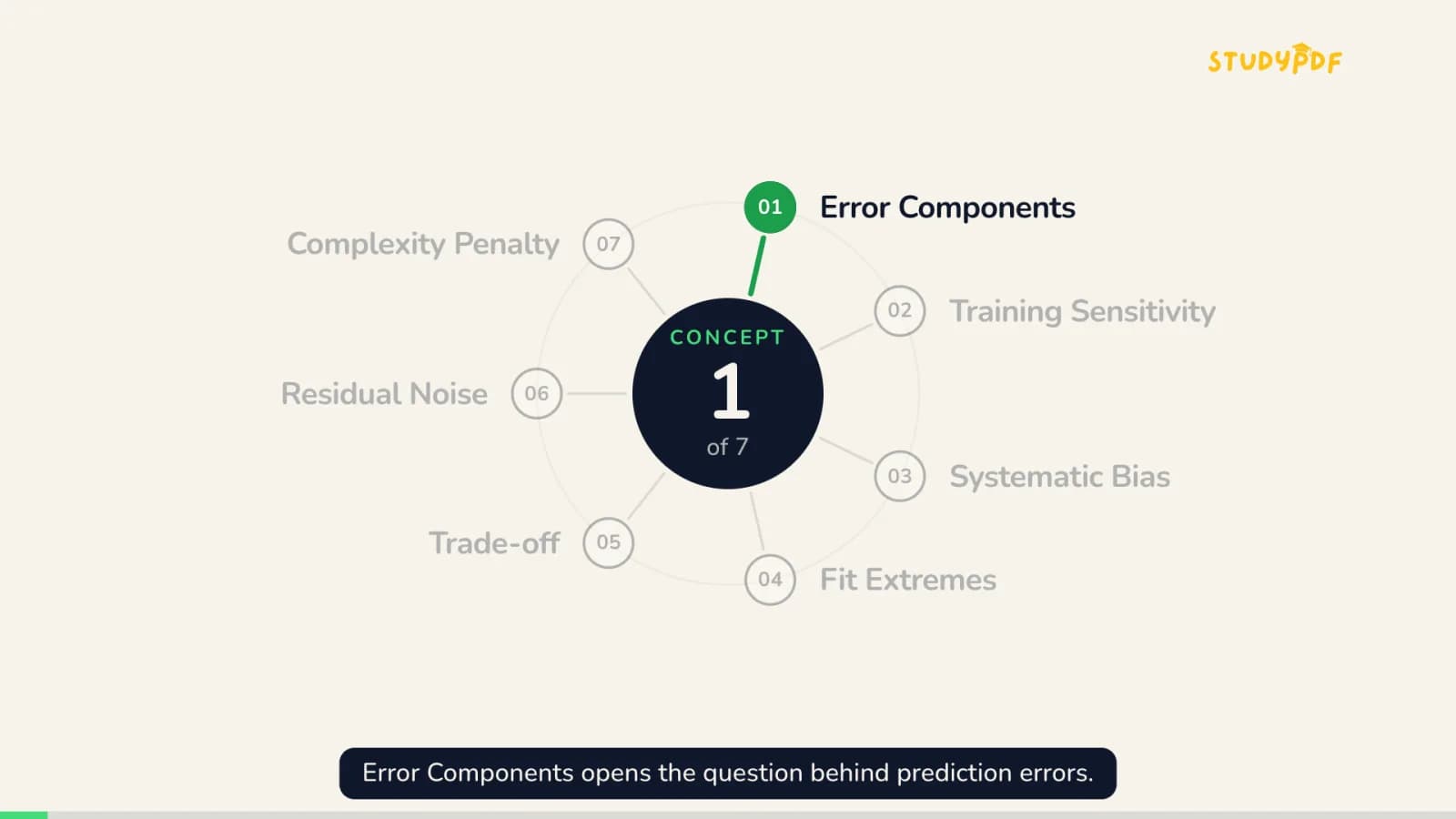 Each concept opens with a card that shows where it sits in the topic.
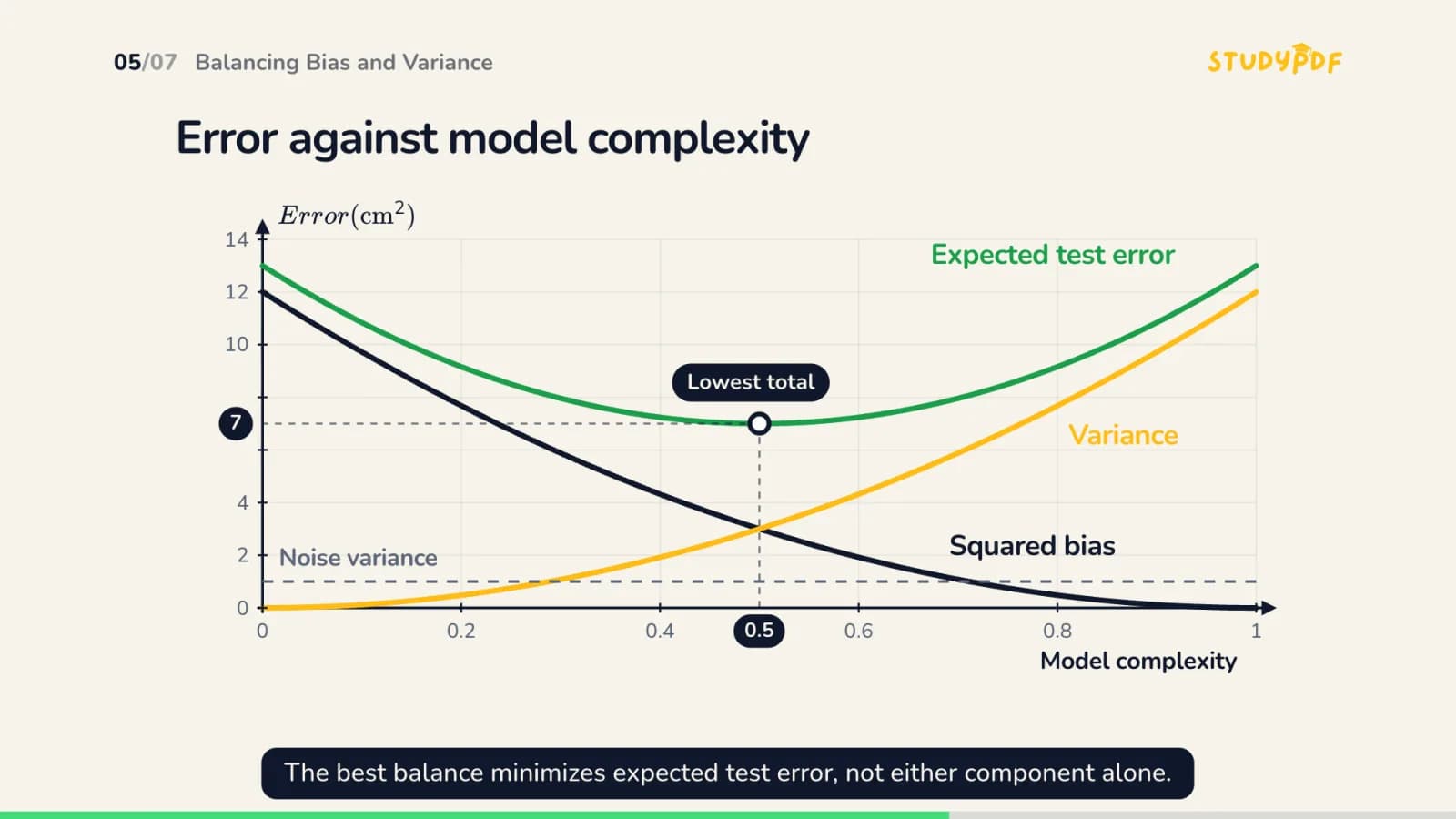 A plot built for the concept.
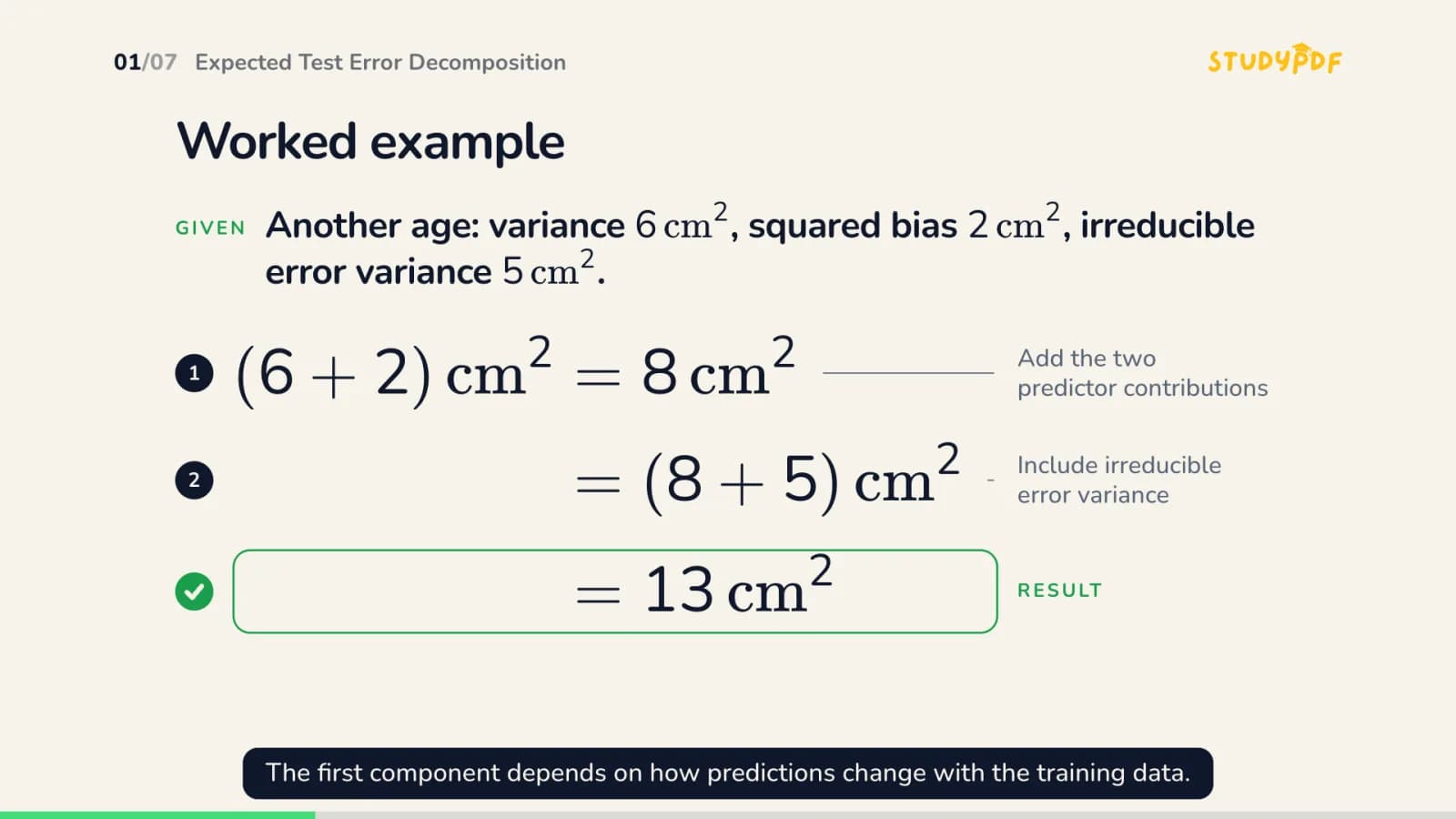 A worked example, step by step.
Frames from a demo video on a typed machine learning topic, made without documents. A video made from your PDF follows your pages and names the page each part comes from.
What one concept looks like
Each concept opens with a card that shows where it sits in the topic. Then it is built up on screen while the narration explains it. A definition gets a diagram. A relationship gets a plot with labelled axes. A method gets a worked example that runs step by step to the result. A formula is shown with each part named.
Choose the long length and every concept also covers the typical mistakes students make with it, and why they are wrong.
Grounded in your pages, not the internet
The video is written from the pages you uploaded, and it names the page each part comes from. So when the narration says something you want to check, you open that page and read it in your lecturer's words.
That matters most where courses differ: the notation your lecturer uses, the example from the lecture, the scope of the exam. A generic video on the same topic gets those wrong. A video built from your PDF does not have to guess.
Watch it, then test yourself
A clear video feels like learning, but what you can recall a week later is what counts. When the video ends, make a quiz or flashcards for the same topic in one click and see what stuck. The concepts you miss show up again in your next quiz.
Videos play in the app, in ten languages, with chapter jump and progress. There is no download for now.
How to turn a PDF into a video with StudyPDF
- 1
Upload the PDF
- 2
Pick one topic
- 3
Choose the length
- 4
Watch, then test yourself
What you get
A video that teaches what your PDF says, in an order that makes sense.
- Chapters in the player, so you can jump to the concept you missed
- One concept at a time, each explained on screen while the voice talks
- Your progress kept in the app, so you can stop and pick up later
- One topic free to try
Questions and answers
Can I turn any PDF into a video?
Any study document works: lecture slides, scripts, textbook chapters, handouts and scanned or handwritten pages. You pick one topic from it and get one video for that topic.
How long is the video?
You choose. Short is about 5 minutes, medium about 8 and long about 13, with the typical mistakes for each concept added. Auto sizes it to the topic, about 8 minutes for a topic with 7 concepts.
Does the video only use what is in my PDF?
The video is built from the pages you uploaded and shows which page each part comes from, so you can check it against your document.
3 more questions
Is it an avatar or stock footage video?
No. There is no avatar, no presenter and no stock footage. The diagrams, plots and formulas are drawn for each concept and build up while the narration explains them.
Can I download the video as an MP4?
Not for now. The video plays in the StudyPDF app, where you can jump between chapters and pick up where you stopped.
Is PDF to video free?
You can try one topic for free. Pro and Ultra include a number of videos every month.
Turn your next lecture into a video
Upload the PDF, pick a topic and watch it explained, concept by concept. Then test yourself on it.